Configuring ESXi 6 (vSphere Setup Part 2)

This is part 2 of a series on setting up vSphere.  If you missed the first part you can find it here.

Now that you have installed ESXi 6 it is time to start configuring.

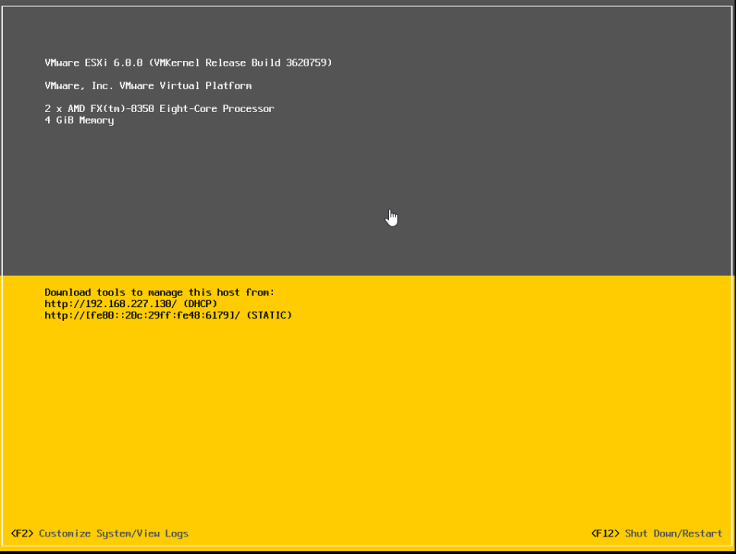
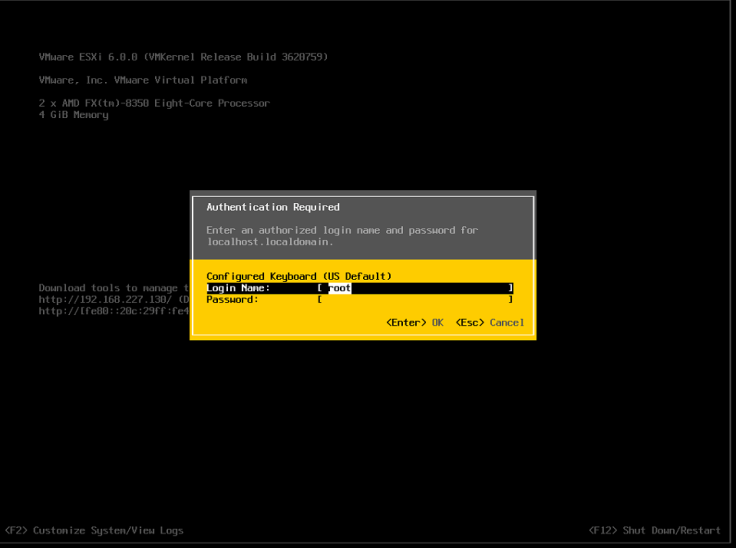
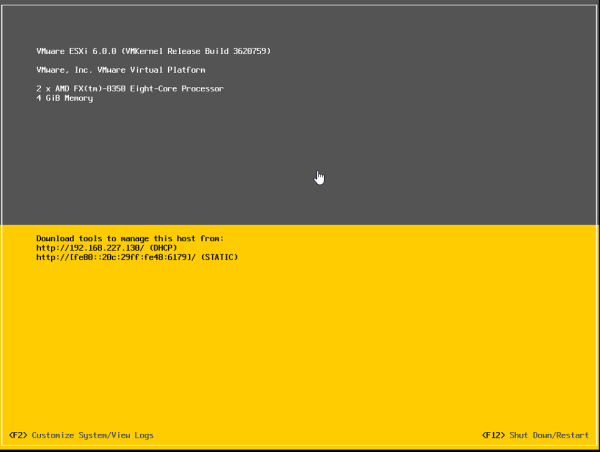
  1. Once the host reboots you will be greeted with this screen.  Press F2 to go to the setup screen where you will login with root and the password you provided earlier.2016-06-03 14_17_49-OFFICE - TeamViewer - Free license (non-commercial use only)2016-06-03 14_19_16-OFFICE - TeamViewer - Free license (non-commercial use only)


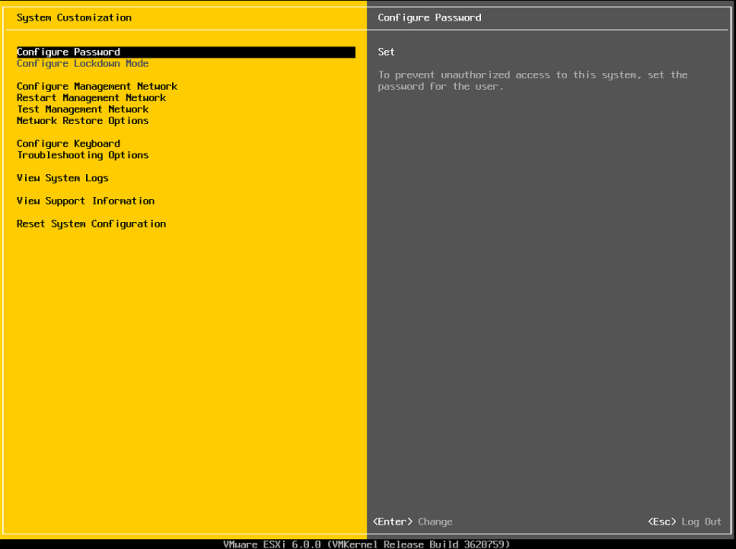
2. Now its time to configure the management network. Go to Configure Management Network and then to Network Adapters.
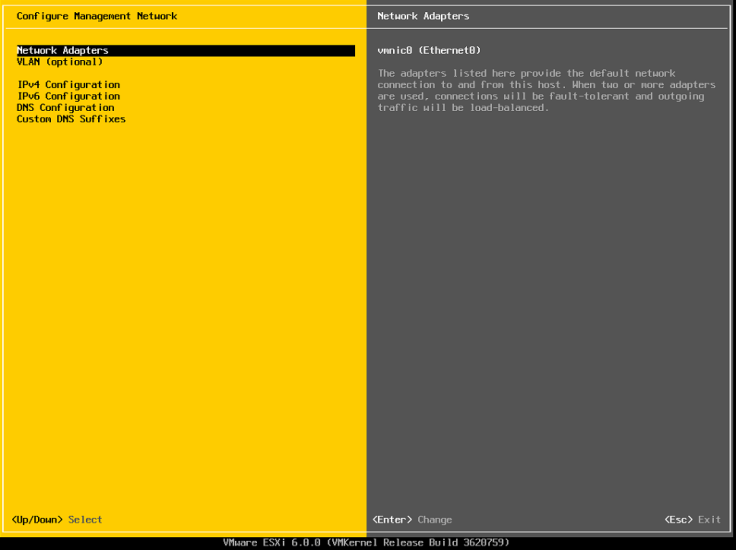
2016-06-03 14_21_00-OFFICE - TeamViewer - Free license (non-commercial use only)2016-06-03 14_21_17-OFFICE - TeamViewer - Free license (non-commercial use only)

3. Make sure all the NIC’s you want to use for management are selected.  Since this is in an nested lab I only have one to use.
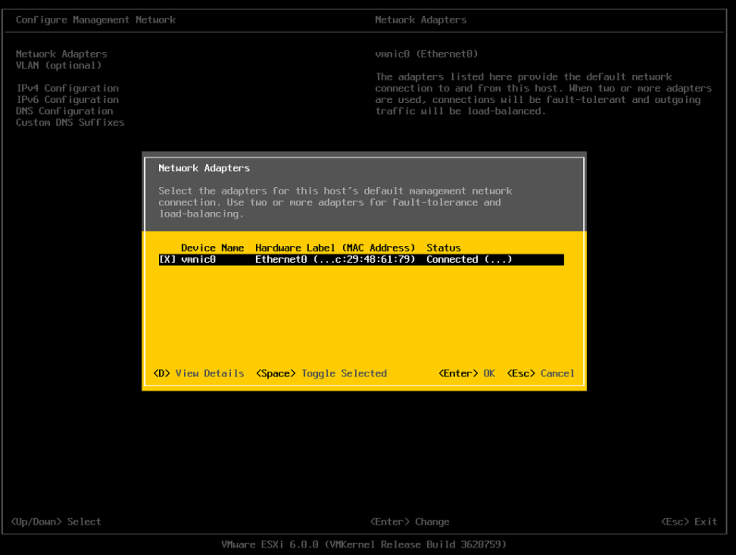
2016-06-03 14_23_11-OFFICE - TeamViewer - Free license (non-commercial use only).png

4. Now for a test lab this option is not really needed, but here is where you can configure the VLAN for the management network.
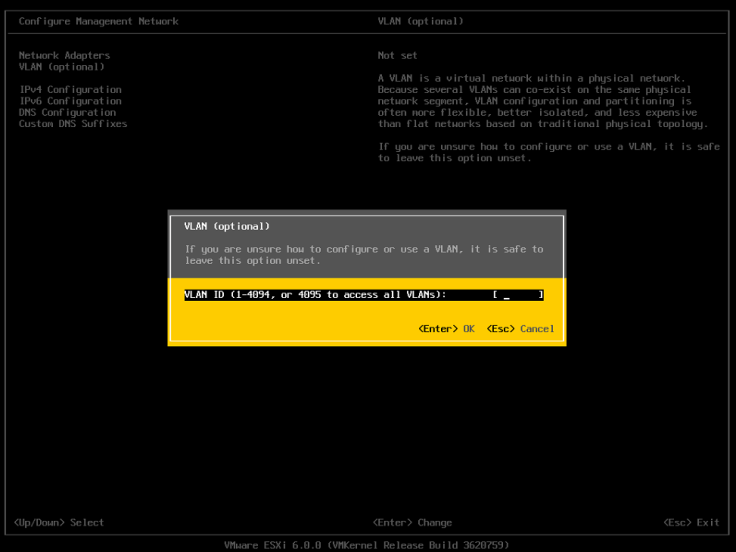
2016-06-03 14_24_53-OFFICE - TeamViewer - Free license (non-commercial use only)

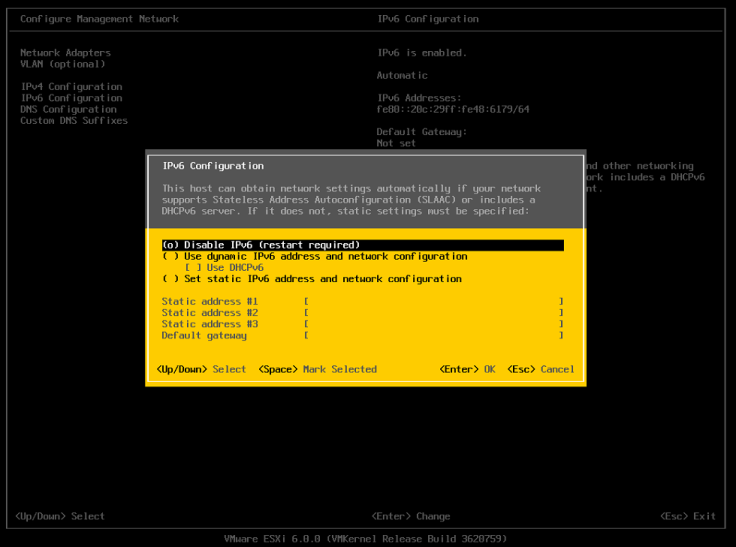
5. Set the IP to static and fill in the appropriate IP information for your environment.  Unless you want to you use it is best to disable IP6.
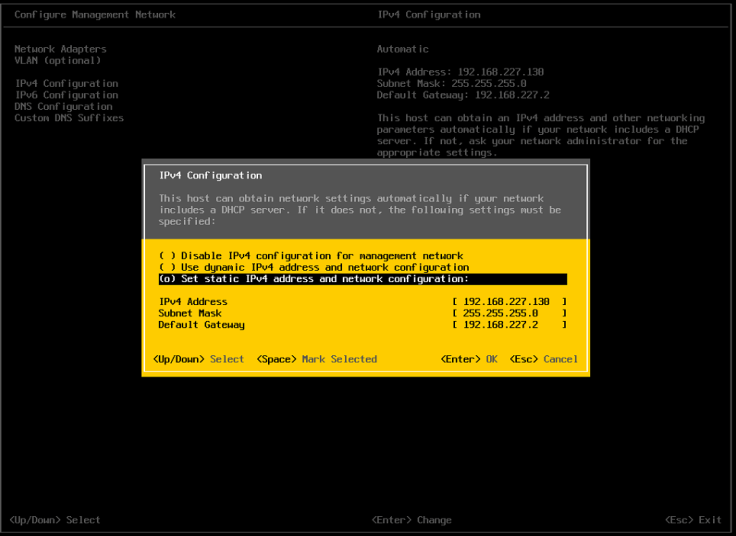
Capture.PNG

2016-06-03 14_42_05-OFFICE - TeamViewer - Free license (non-commercial use only)

6. Set the appropriate DNS  and hostname information.
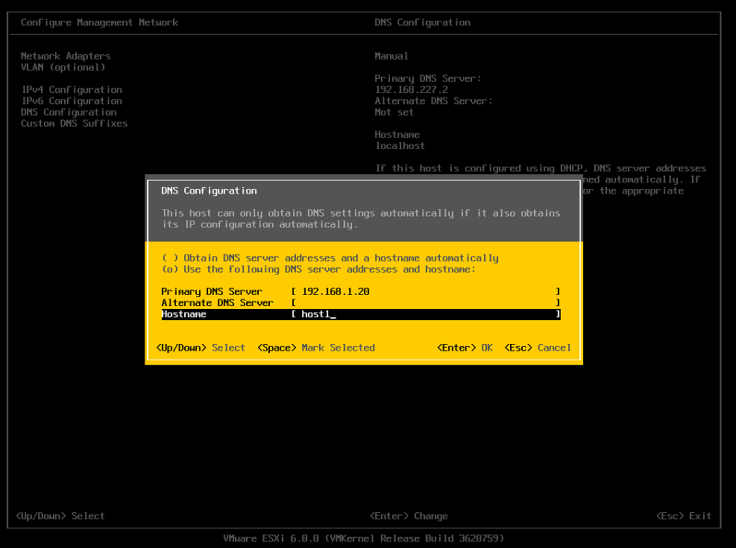
2016-06-03 14_41_36-OFFICE - TeamViewer - Free license (non-commercial use only)

7. Setup the custon DNS suffix which would be your domain name.
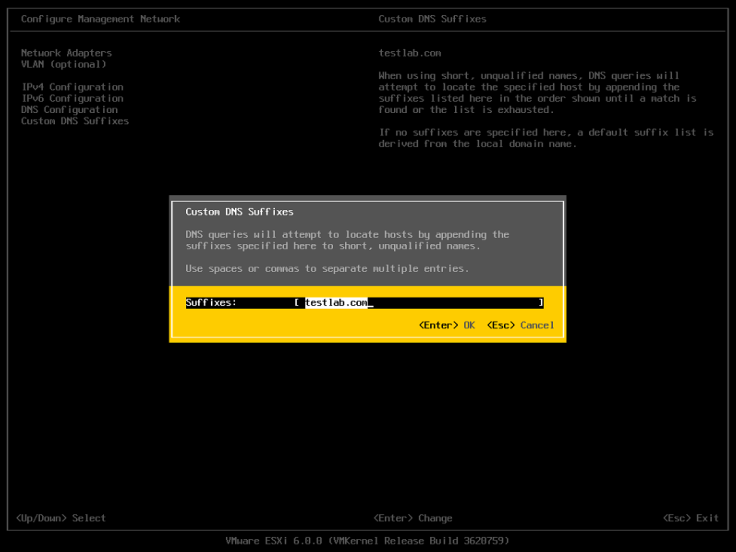
2016-06-03 14_43_42-OFFICE - TeamViewer - Free license (non-commercial use only)

8.  Now its time to reboot the host so all of the configuration can take affect.
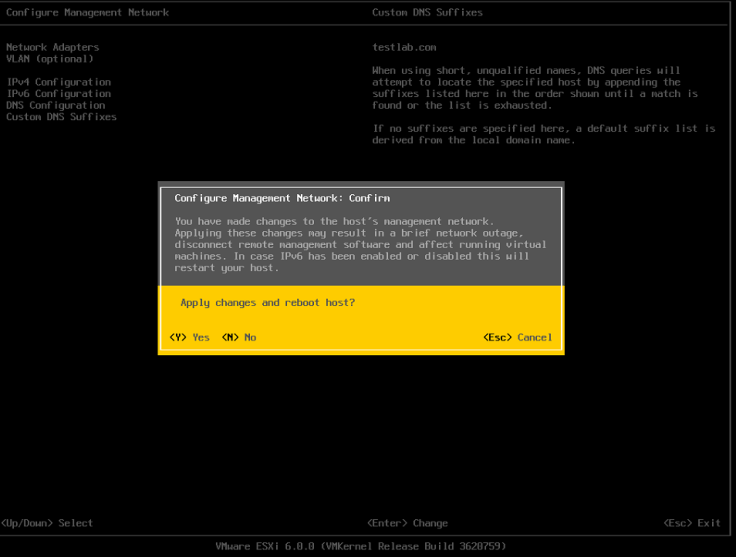
2016-06-03 14_44_36-OFFICE - TeamViewer - Free license (non-commercial use only)

In part three of setting up ESXi I will go over the deployment of the VCSA.


NWLA Tech Meetup

For anyone in the Northwest Louisiana Area we are having our first Technology meetup.  If you would like to attend you can register here.  See you there!


Installing ESXi on Bare Metal (vSphere Setup Part 1)

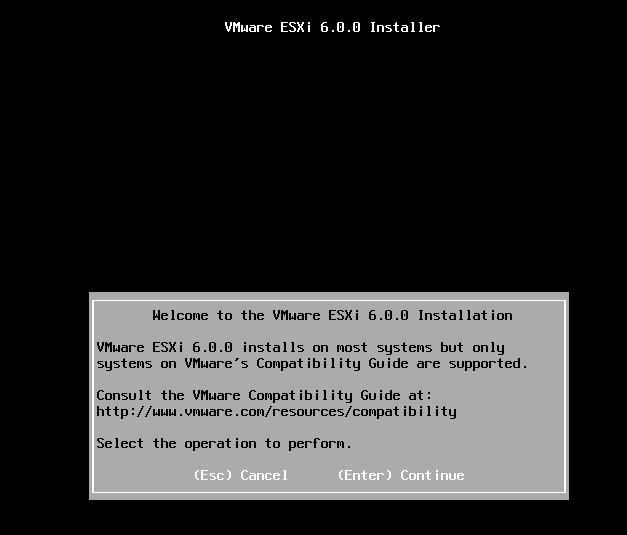
Installing ESXi is a simple and straight forward process, but there are a few things you need to keep in mind.  The hardware compatibility list is very important.  You should always make sure your hardware is on it if you are using it in an production environment. In a test environment the setup will probably work, but there could always be some issues you may encounter.

We will cover the following items.

  • Check hardware compatibility
  • Download the ESXi image
  • Create bootable image
  • Install
  • Configure

Hardware Compatibility

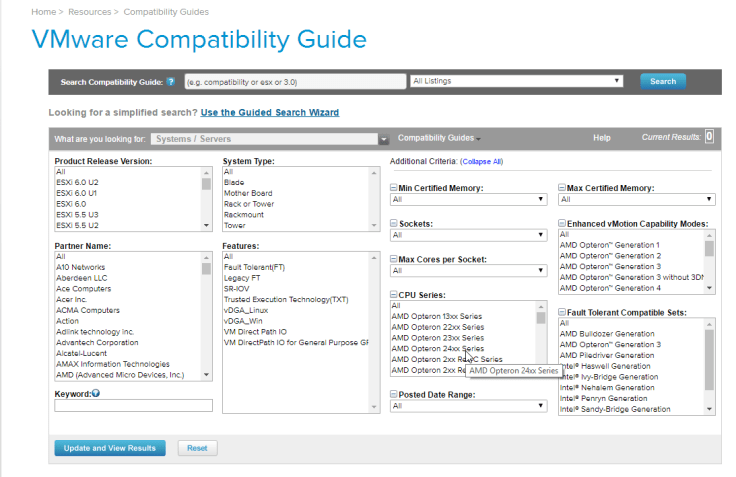
  1. Check for hardware compatibility here.  If your system is not listed and your using this for test  then have no fear.  You will probably be able to install and run everything without and issues.

2016-05-20 14_19_24-VMware Compatibility Guide - System Search.png

2. Go into the BIOS and make sure the CPU virtualization support is turned on.

Download ESXi

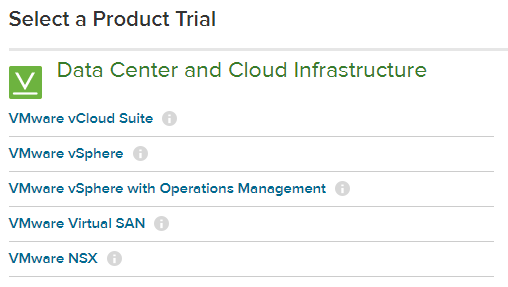
  1. Download ESXi from the VMware website.

2016-05-20 14_20_47-Evaluate and Download VMware Products for a Virtual Infrastructure - VMware _ Un

Once you have the ISO you can burn it to a CD or create a bootable USB drive.  If you want to create a bootable USB drive Rufus works really well for that.

Installing ESXi

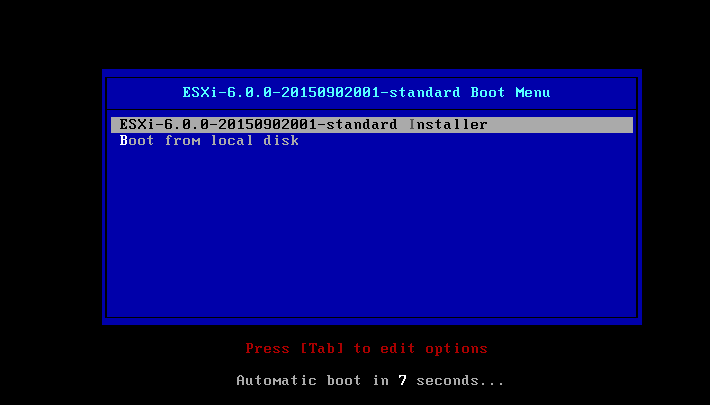
  1. Choose the ESXi installer or wait for it to default to that.

2016-05-20 14_25_06-VMware ESXi 6 - VMware Workstation

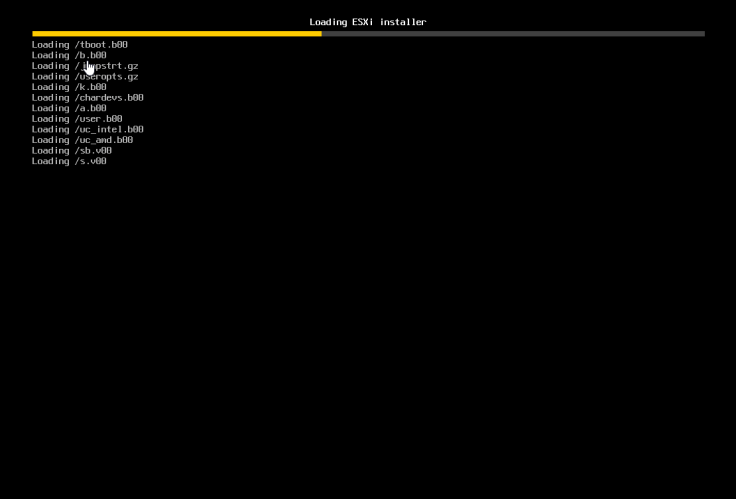
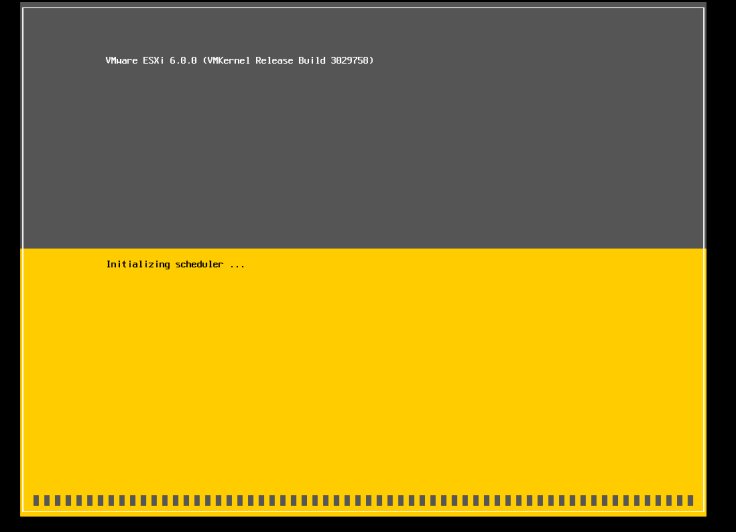
2.  You will see two different progress screens.

2016-05-20 14_25_24-VMware ESXi 6 - VMware Workstation

2016-05-20 14_25_35-VMware ESXi 6 - VMware Workstation2016-05-20 14_27_18-VMware ESXi 6 - VMware Workstation

3. Press enter then F11.

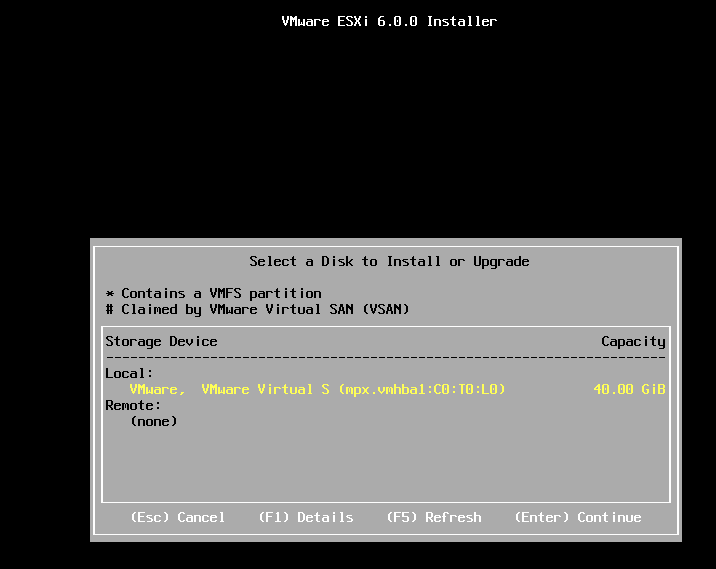
4. Choose location to install it.

2016-05-20 14_30_55-VMware ESXi 6 - VMware Workstation

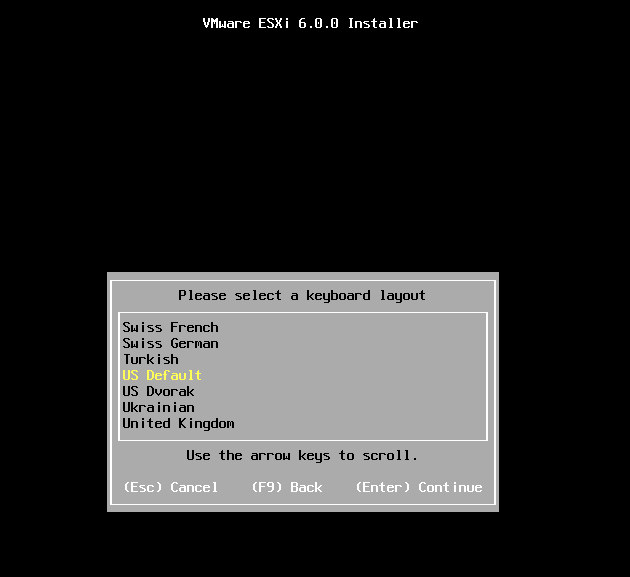
5. Choose language

2016-05-20 14_31_34-VMware ESXi 6 - VMware Workstation

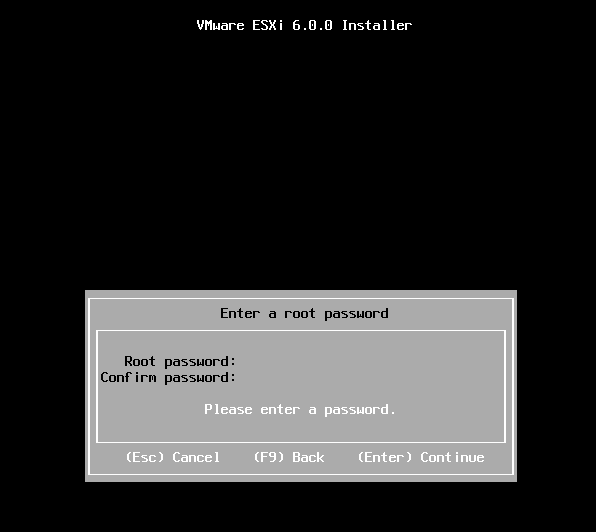
6. Choose password

2016-05-20 14_32_40-VMware ESXi 6 - VMware Workstation

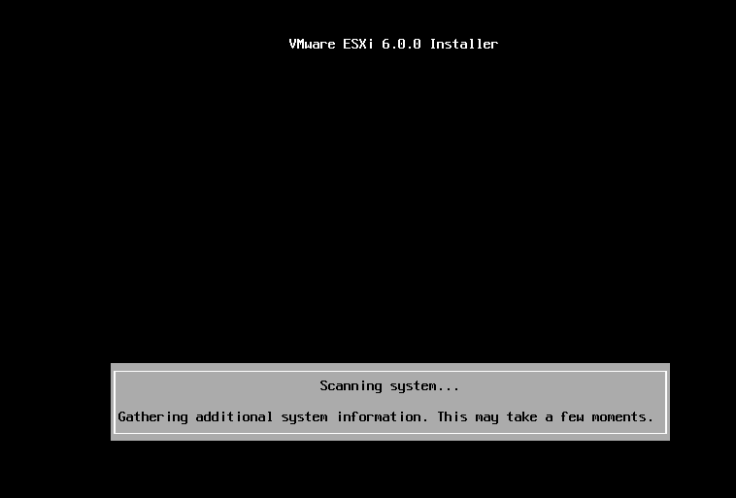
7. It will not scan your system for its hardware.

2016-05-20 14_34_46-VMware ESXi 6 - VMware Workstation

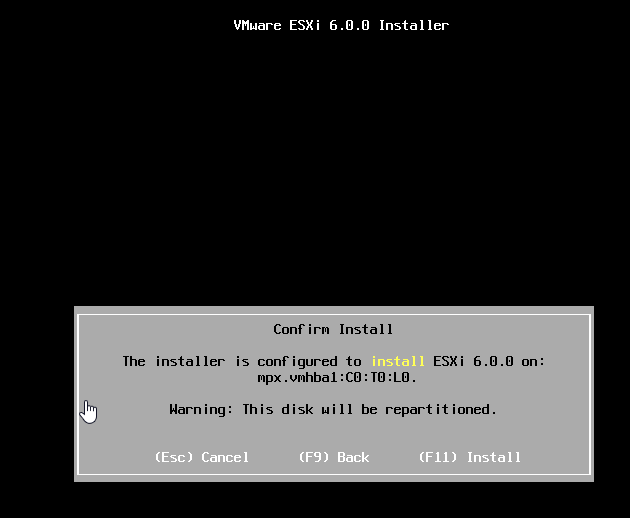
8. Press F11 to insall.

2016-05-20 14_35_43-VMware ESXi 6 - VMware Workstation

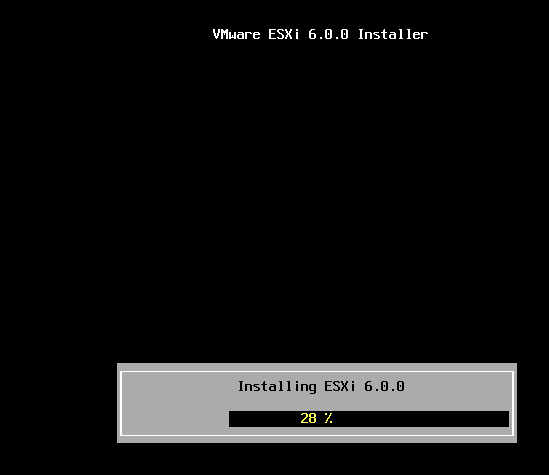
9. Wait for the progress bar.

2016-05-20 14_36_36-VMware ESXi 6 - VMware Workstation

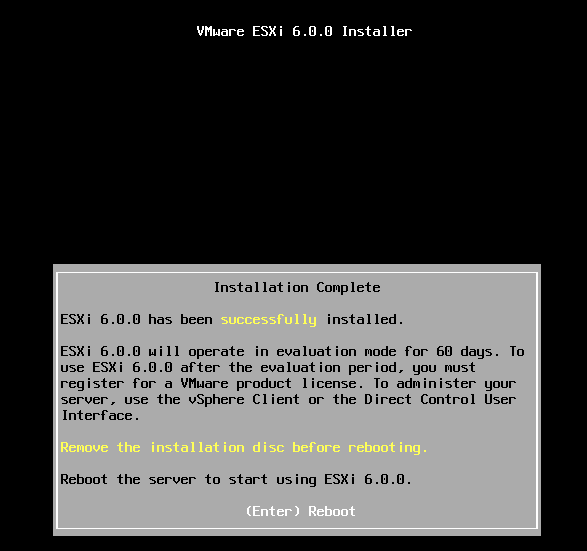
10. Press enter to reboot.

2016-05-20 14_38_00-VMware ESXi 6 - VMware Workstation

Now ESXi is installed.  In my next post I will show how to setup the configuration on a ESXi host.

No More C Client!

The C client is dead, and going forward VMware will no longer support it.  I know there are still a lot of people using that old client, but its time to move on.  I have known that this day was coming, and have been trying to only use the web client exclusively.  Thankfully they are making a lot of changes.  Such as no more Java or flash.  Instead they are moving the web client to run on HTML5.  The new version of the web client has been available as a fling for a while now, and since ESX 6 update 2 there has been a web interface for managing the host directly.

I think this is the right decision for VMware.  Developing for both the C client and a web client; meant more resources were being used to accomplish the same thing.  I hope other companies follow VMware and only use HTML5.

Default Isolation Address

If a host thinks it is isolated by default it will ping its gateway.  It is best practice to have more than one isolation address, and you can have up to 10 of these.  Duncan Epping has a good article on it here.  Here is a simple script I found somewhere on the web.

$cluster = Get-Cluster -Name ITN

New-AdvancedSetting -Entity $cluster -Type ClusterHA -Name ‘das.isolationaddress1’ -Value 1.2.3.4

New-AdvancedSetting -Entity $cluster -Type ClusterHA -Name ‘das.usedefaultisolationaddress’ -Value false

#Disable and reenable HA

Set-Cluster -Cluster $cluster -HAEnabled:$false

Set-Cluster -Cluster $cluster -HAEnabled:$true

It’s beta time! Get your voice in and shape the…

It’s beta time! Get your voice in and shape the direction of #vSphere

It’s beta time! Get your voice in and shape the…

It’s Beta Time! The VMware vSphere team invites you to indicate your interest to join the vSphere Beta. This is a unique opportunity to get your voice in and shape the direction of vSphere. Please fill out this short survey to register your interest to join the vSphere Beta. Confirmed participants will be notified via email.


VMware Social Media Advocacy

Analyzing vSphere with Free Tools “Syslog”

Virtualization is a great technology, but sometimes it can be hard getting a closer look into your environment.  Over the next few post I am going talk about a few free tools that I use in my environment.  They have given me a lot of support in managing my environment, and I would like to think the people who made them.

Syslog can be a very useful tool.  The problem with it is that it can be very painful to use.  Luckly VMware has a great tool for that and that tool is LogInsight. It makes a great syslog server and has a lot of other features that you may find invaluable.  It is a paid product so what is a great alternative?  Sexilog is that great alternative.  With it you point all your esx host to it and watch the magic happen. Very quickly you get a better insight what is happening inside your environment. It may not have as many features as LogInsight, but nothing beats it on feature compared to price.

Blog at WordPress.com.

Up ↑